
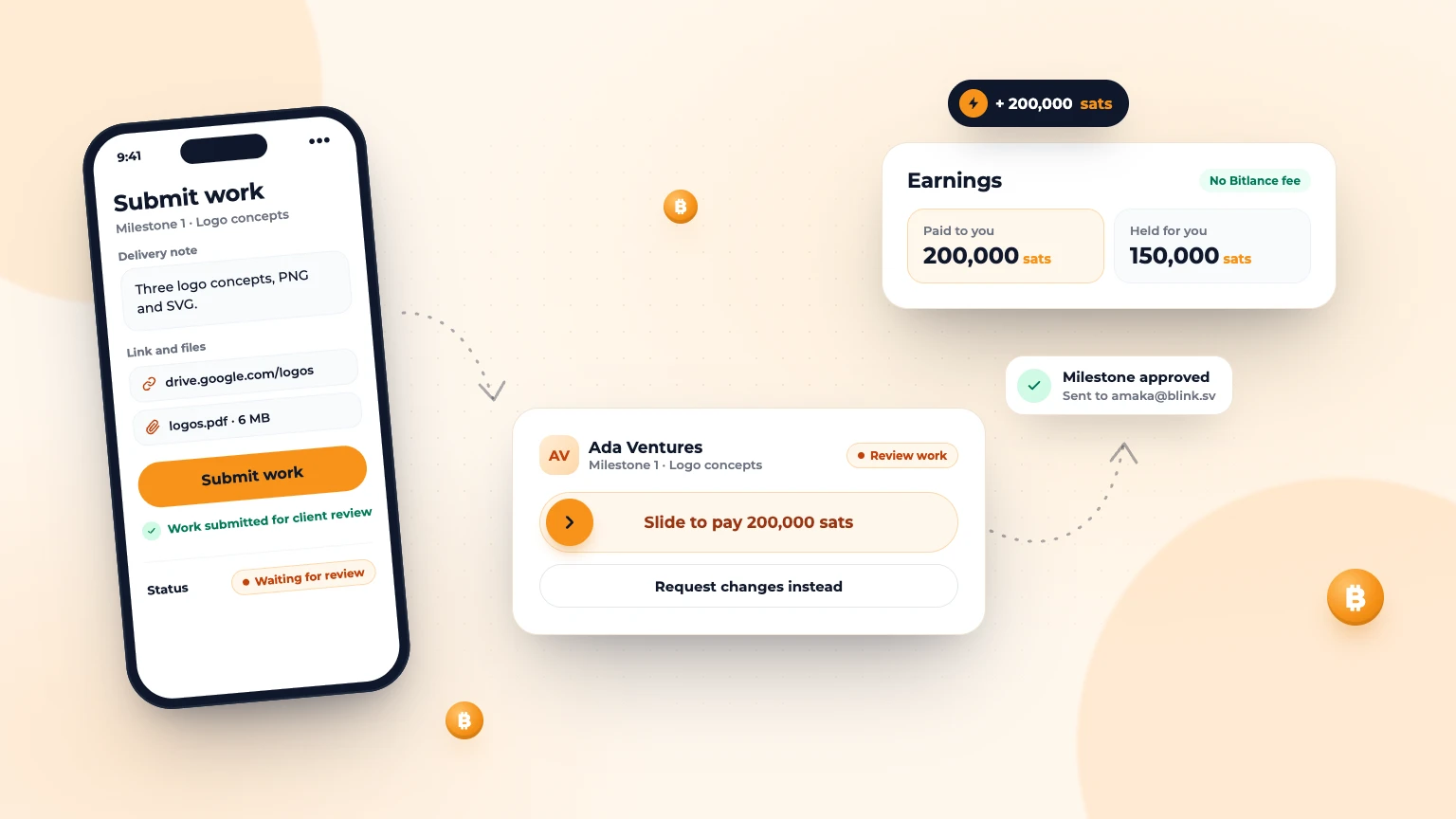
You've been hired. Here's the full path from starting work to seeing sats in your wallet, so nothing on the way surprises you.
Before you start: set your payout address
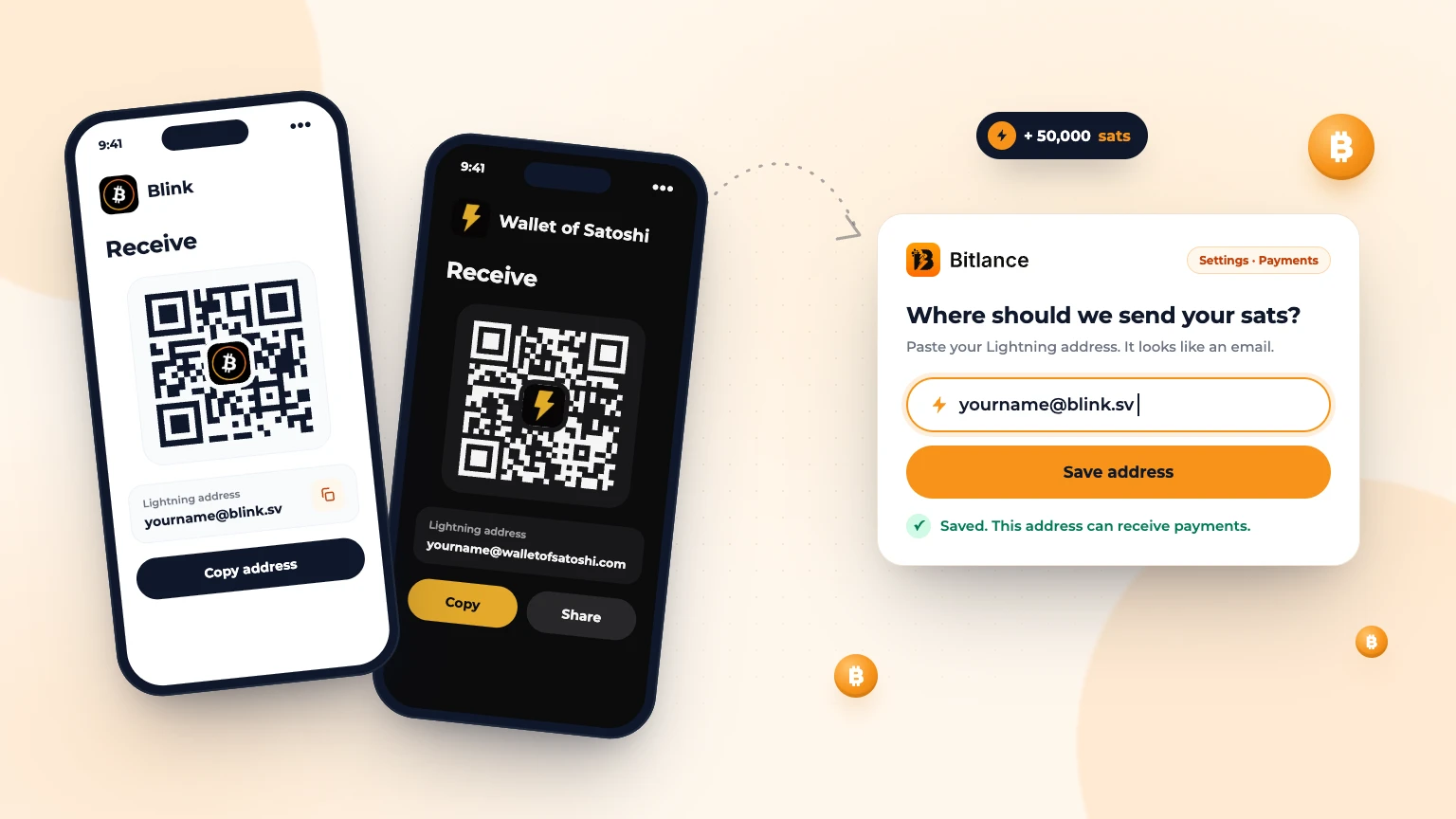
Go to Settings, then Payments, and tap Connect wallet. Enter your Lightning address, like name@blink.sv. Bitlance checks it can receive payments before saving. Do this before the client pays: the address you have when the client pays in is the one that milestone pays out to. Read how to set up a Lightning address.
Step 1: Wait until the milestone is paid in
Open the conversation in Messages and look at the Payment tab at the top:
- "Waiting for the client to fund this contract." Don't start yet.
- "The client has generated a Lightning invoice. Wait for funding confirmation before starting."
- "The client has paid. You can start work now." Now you can begin.
You'll also get a "Milestone paid in" notification, and the Work tab turns orange with Submit work. On your Contracts page, the payment status reads Client has paid.
Step 2: Do the work and keep the client posted
Use Messages for questions and progress updates. A short update halfway through avoids surprises at the end and keeps a clear record.
Step 3: Submit your work
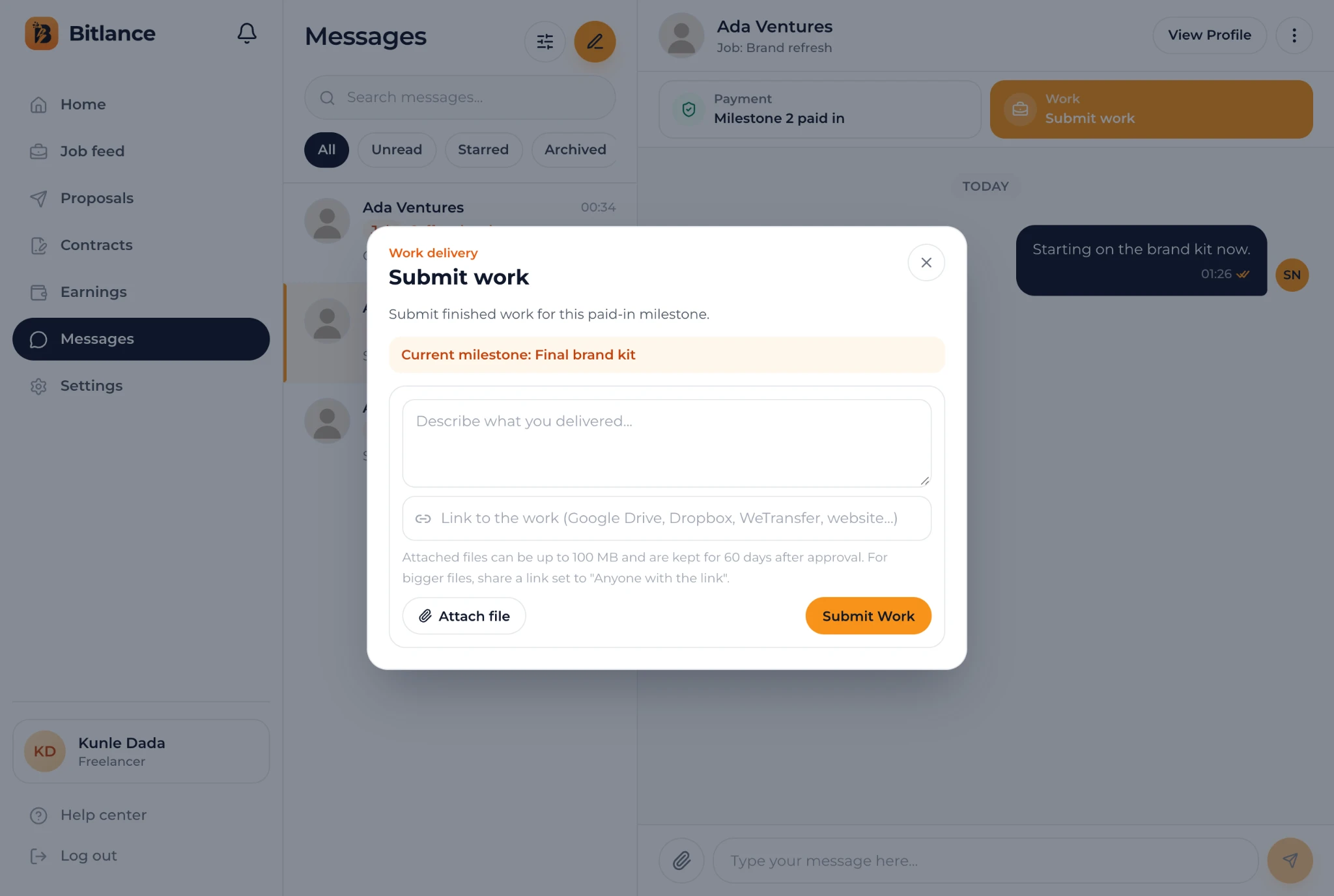
In the chat, tap Work, or open the contract on your Contracts page and find Submit work. Add at least one of these:
- A delivery note: what you delivered and anything the client should check.
- A link to the work, such as Google Drive, Dropbox, WeTransfer or a live website. Bitlance checks the client can open it. If it says the link is private, set sharing to "Anyone with the link" and paste it again.
- A file with Attach file: up to 10MB, or 100MB for videos. For anything bigger, share a link.
Tap Submit Work. You'll see "Work submitted for client review", a message appears in the chat, and the client is notified.
Step 4: The client reviews
The client either approves it or asks for changes.
- Approved: the client slides Slide to pay. Your sats are sent to your Lightning address straight away, usually within seconds. You'll get a "Milestone approved" notification.
- Changes requested: you'll see Changes requested with the client's note. Make the changes, then tap Resubmit Work, in the chat or on the Contracts page with Resubmit Adjusted Work.
Step 5: Check your Earnings
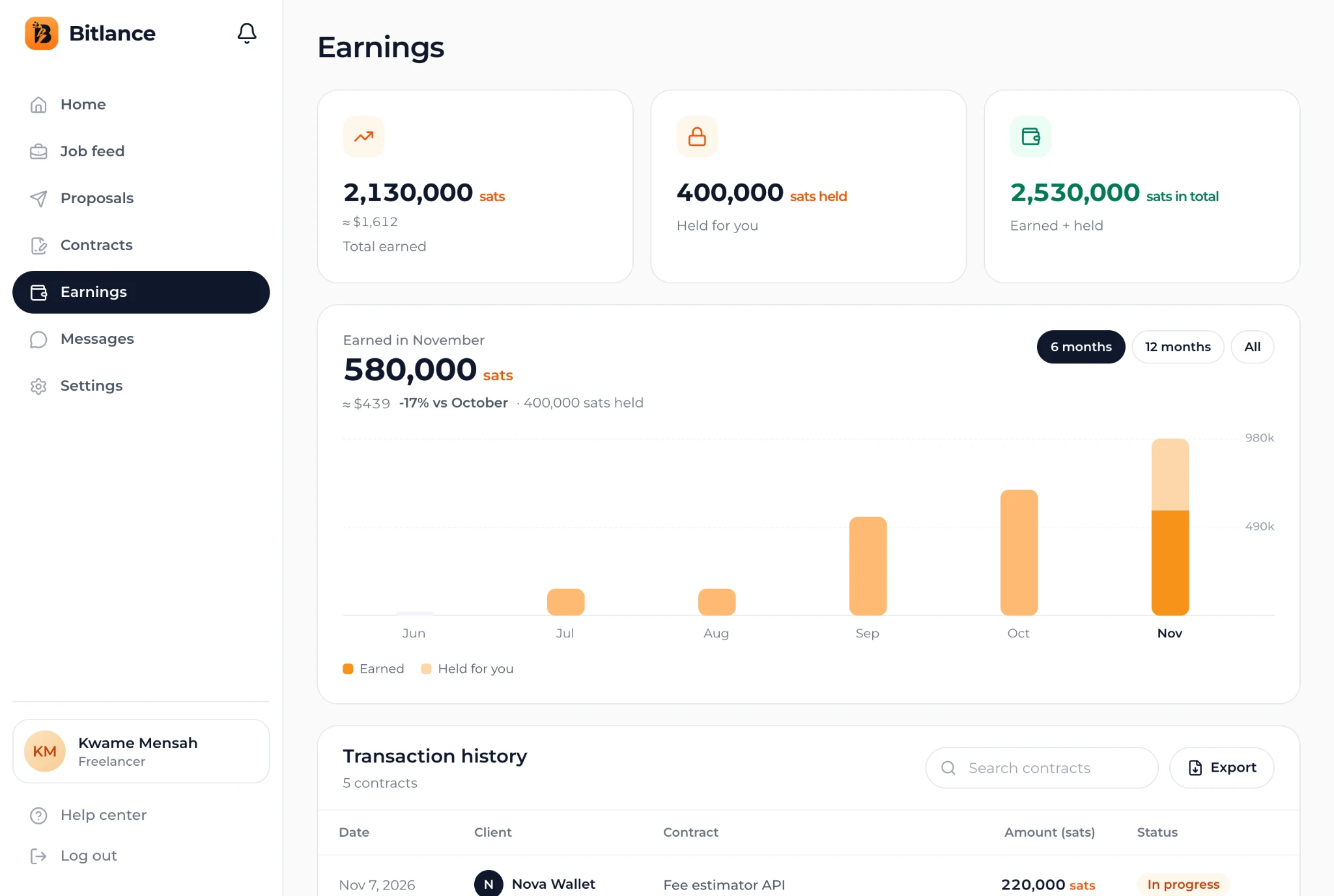
Open Earnings in your dashboard. You'll see:
- Total earned: sats already paid to you.
- Held for you: sats clients have paid in that are waiting for their milestone to be approved.
- Transaction history: every contract, with its status. Tap one to see each milestone.
The client's 5% fee never comes out of your amount.
More than one milestone?
- If the client paid for all milestones up front, the next one is already paid in and you can start straight away.
- If they pay per milestone, you'll see "Wait for the client to pay in milestone 2." Don't start the next milestone until it's paid in.
When the last milestone is paid, the contract shows Contract completed. Now's a good time to rate the client and ask for a review. Read how badges and reviews work.
If a payment doesn't arrive
Payouts are almost always instant. If the client says they approved your work but nothing arrived:
- Check the wallet that belongs to the address you had saved when the client paid.
- Check your Lightning address in Settings still works.
- Contact Bitlance support from Help in your dashboard. Your sats stay held safely until it's sorted out.
Frequently asked questions
When should I start working on a Bitlance contract?
Only when the Payment tab says the client has paid, or the milestone is paid in. That means the sats for that milestone are already held by Bitlance.
How big can files be when I submit work?
Up to 10MB per file, or 100MB for videos. For larger work, share a Google Drive, Dropbox or WeTransfer link set to Anyone with the link.
How fast do I get paid after approval?
Usually within seconds. When the client slides to pay, the sats are sent to your Lightning address straight away.

Written by
Bitlance team
Research and insights on Lightning Network payments, remote Bitcoin work, and freelancing.
Related articles
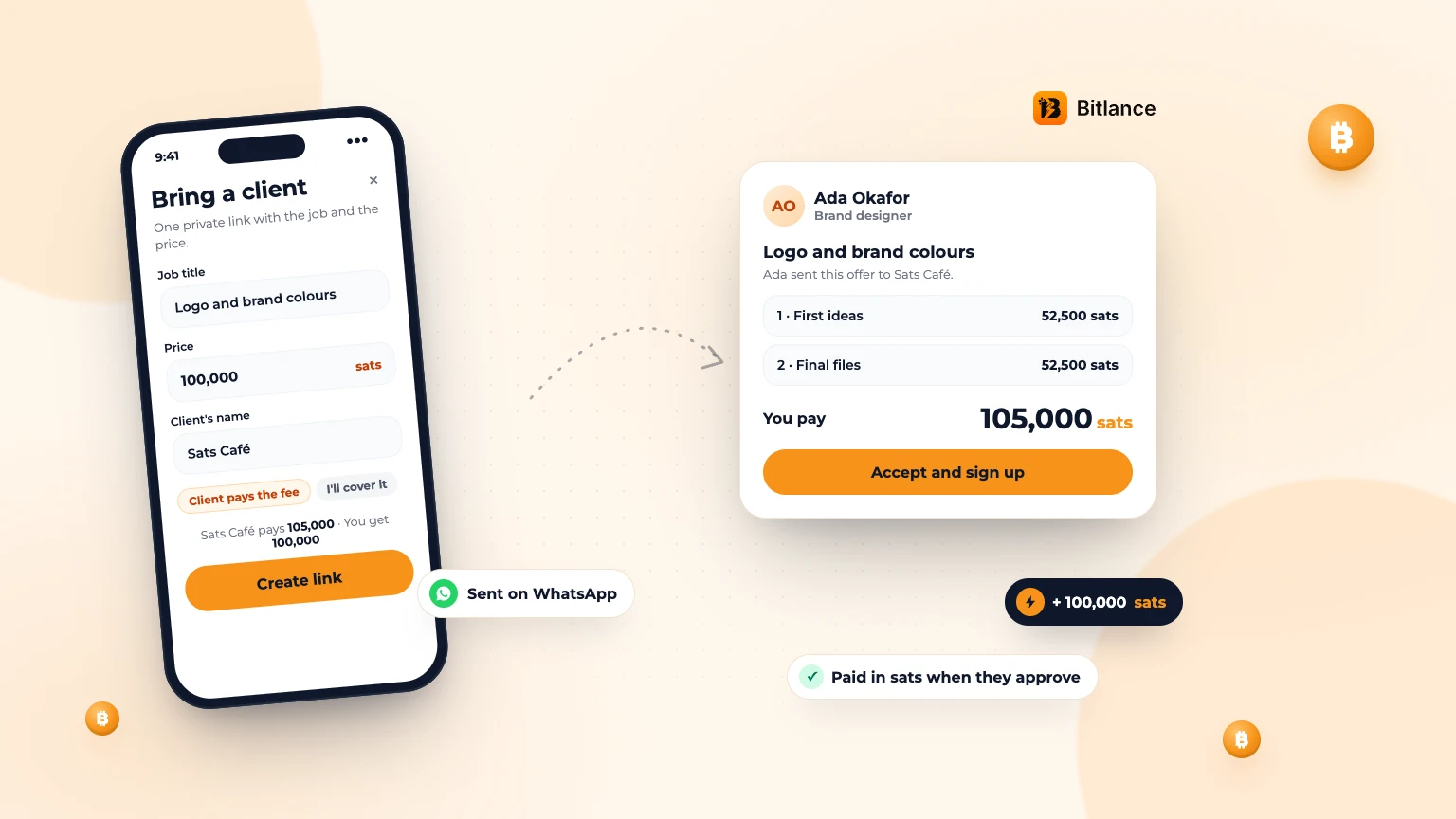
How to bring your own client to Bitlance and get paid in sats
One private link with the job and your price. Your client pays in first, and you're paid in sats when they approve....
Nov 133 min read
How to get a Lightning address and add it to Bitlance
Step by step with Blink and Wallet of Satoshi, for clients and freelancers: pick a wallet, get your address and add it to Bitlance....
Nov 139 min read
Get Matched: Let Bitlance Pick Checked Freelancers for You
Short on time? Tell us what you need and we'll email you 2 to 3 checked freelancers, usually within 2 working days. It's free to ask....
Nov 83 min read