
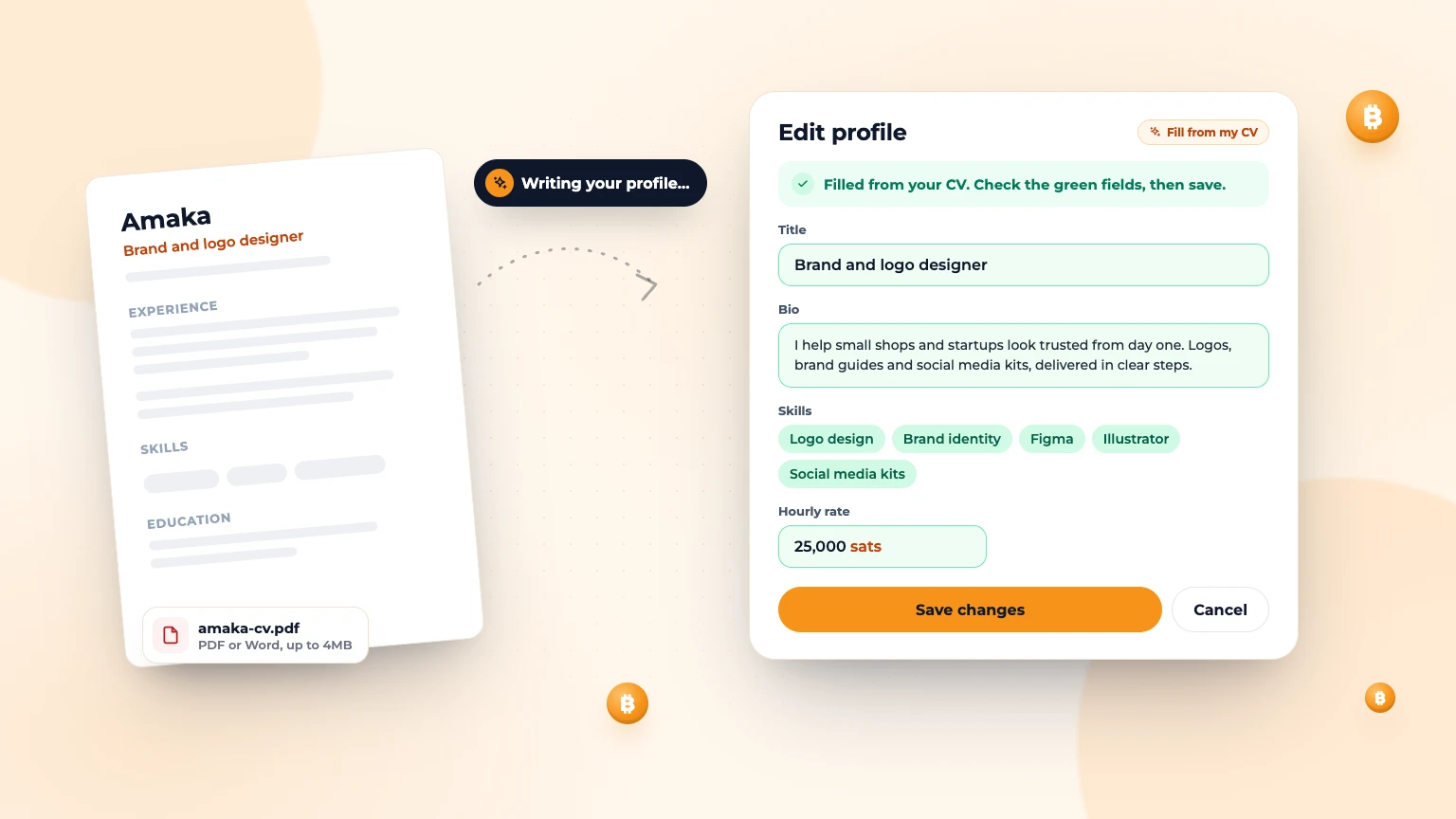
A complete profile wins more work, but writing a bio from nothing is slow. If you already have a CV, Bitlance AI can turn it into a first draft of your profile in under a minute. You stay in control: nothing is saved until you check it and press save.
Step 1: Open Edit profile
Sign in, open your dashboard and go to Profile, then tap Edit profile. At the top of the form you'll see a card called Fill my profile from my CV.
Don't see it? The AI helpers can be switched off. Go to Settings and turn on AI assistant.
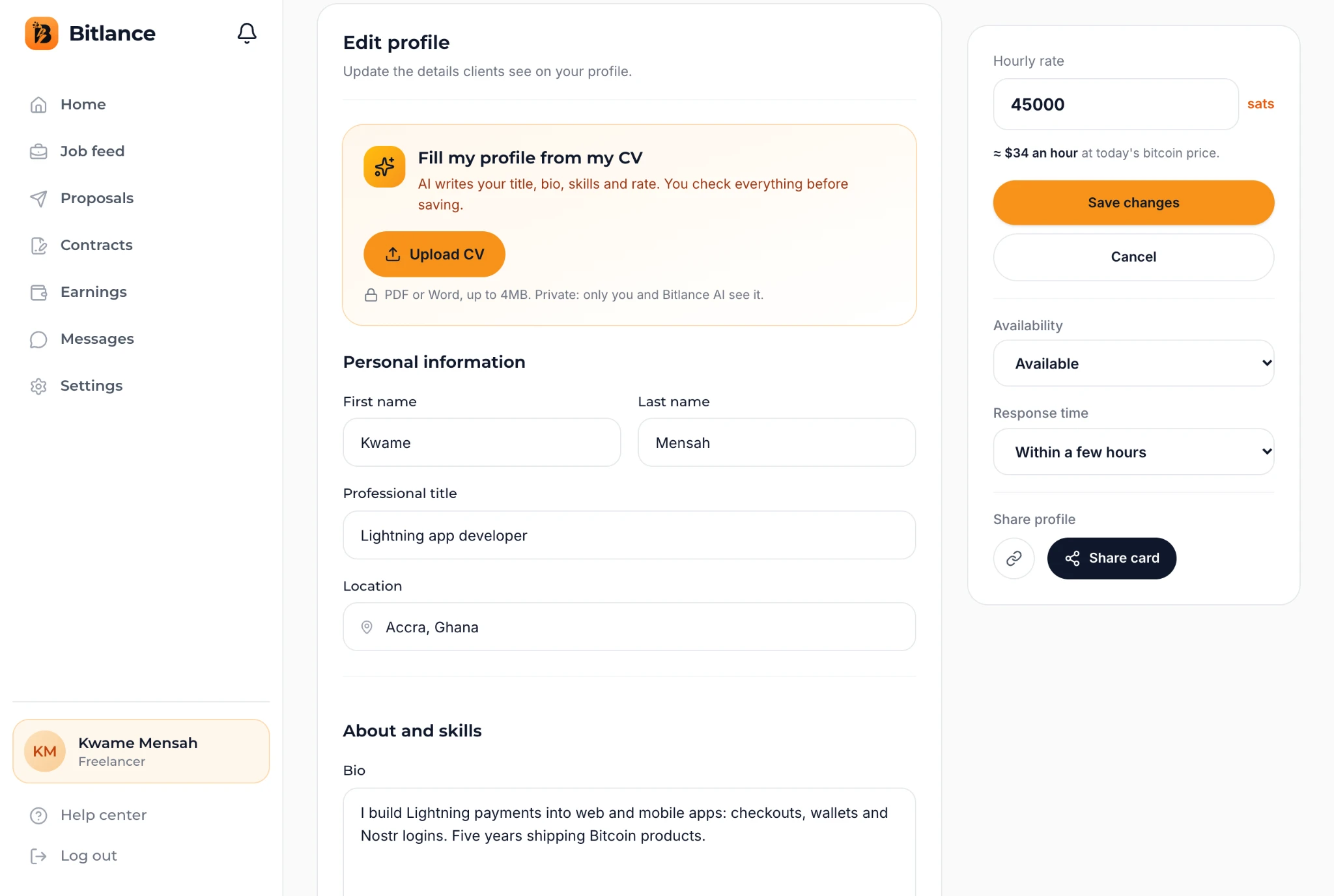
Step 2: Upload your CV
Tap Upload CV and pick your file.
- File types: PDF or Word (.docx). For an older .doc file, save it as PDF first.
- Size: up to 4MB.
- Scans and photos usually don't work, because there's no text to read. Type your bio instead.
Your CV stays private. Clients never see it. Bitlance keeps only the text from your CV, not the file itself, so the AI can use it again later.
Step 3: Let AI fill your profile
Right after the upload, Bitlance reads your CV and writes your profile. You'll see "Reading your CV…" and then "Writing your profile…". It fills in:
- Title: what you do, the way a client would search for it.
- Bio: 80 to 150 words in your own voice, in short paragraphs.
- Skills: 5 to 10, most important first.
- Hourly rate in sats: a fair starting rate, based on what freelancers on Bitlance charge. It only fills this if your rate is empty.
The AI only uses facts from your CV. It's told never to invent clients, numbers or degrees, and to leave out phone numbers, emails and addresses.
Step 4: Check the green fields, then save
Every field the AI filled turns green, with the note "Filled from your CV. Check the green fields, then save." Read each one and change anything that doesn't sound like you. When you're happy, tap Save changes. If you'd rather not keep it, tap Cancel and nothing changes.
Step 5: Add links from your CV to your portfolio
If your CV has links to your work, Bitlance opens each one to check it works. Working links appear under "Links in your CV. Add them to your portfolio?", each marked Link works. Untick any you don't want, then tap Add to portfolio. These are added straight away.
Already wrote a bio? Use Improve with AI
Under the Bio field there's an Improve with AI button. Write at least 8 words about your work, tap it, and AI fixes spelling, grammar and flow. It keeps every fact, adds none, and keeps it about the same length. You'll see a suggestion, sometimes with extra skills. Tap Use this or Keep mine, then save.
Managing your saved CV
Once uploaded, the CV card shows your file name and word count, with these buttons:
- Fill from my CV fills your profile again.
- View text shows what Bitlance read.
- Replace uploads a newer version.
- Remove deletes the saved text. Your profile stays as it is.
Your saved CV also helps when you apply for jobs: Write with AI on a job page uses it to draft a proposal about your real experience. Read how to write a proposal that wins.
Ready? Create your free freelancer account and upload your CV.
Frequently asked questions
Can clients see my CV on Bitlance?
No. Your CV is private. Bitlance keeps only its text, so the AI can use it for your profile and proposals. Clients only see the profile you save.
What CV files can I upload?
PDF or Word (.docx), up to 4MB. Scanned images and photos usually can't be read, so type your bio instead.
Will the AI change my profile without asking?
No. It fills the form and highlights the fields in green. Nothing is saved until you tap Save changes. The only exception is portfolio links, which are added when you tap Add to portfolio.

Written by
Bitlance team
Research and insights on Lightning Network payments, remote Bitcoin work, and freelancing.
Related articles
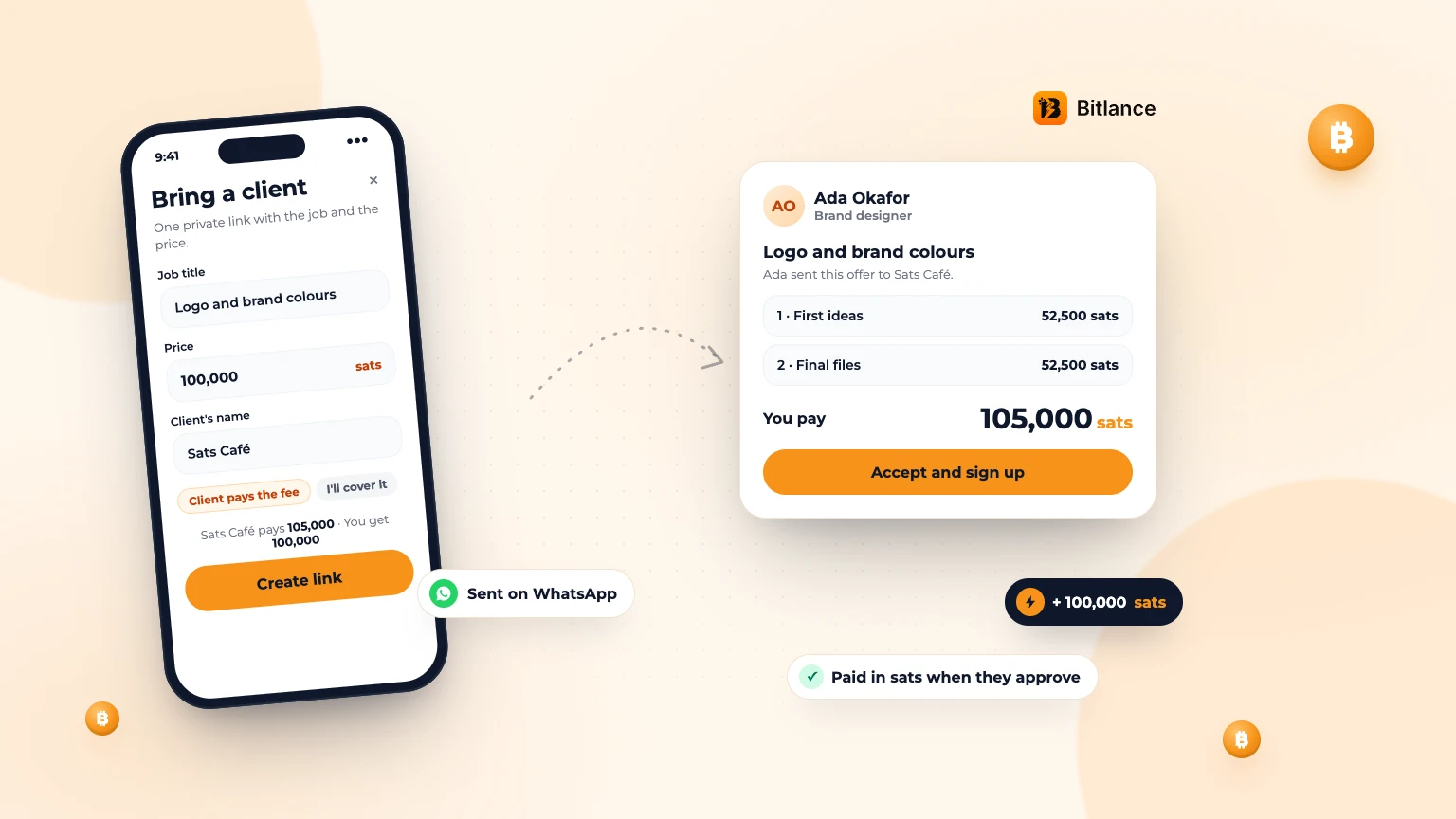
How to bring your own client to Bitlance and get paid in sats
One private link with the job and your price. Your client pays in first, and you're paid in sats when they approve....
Nov 133 min read
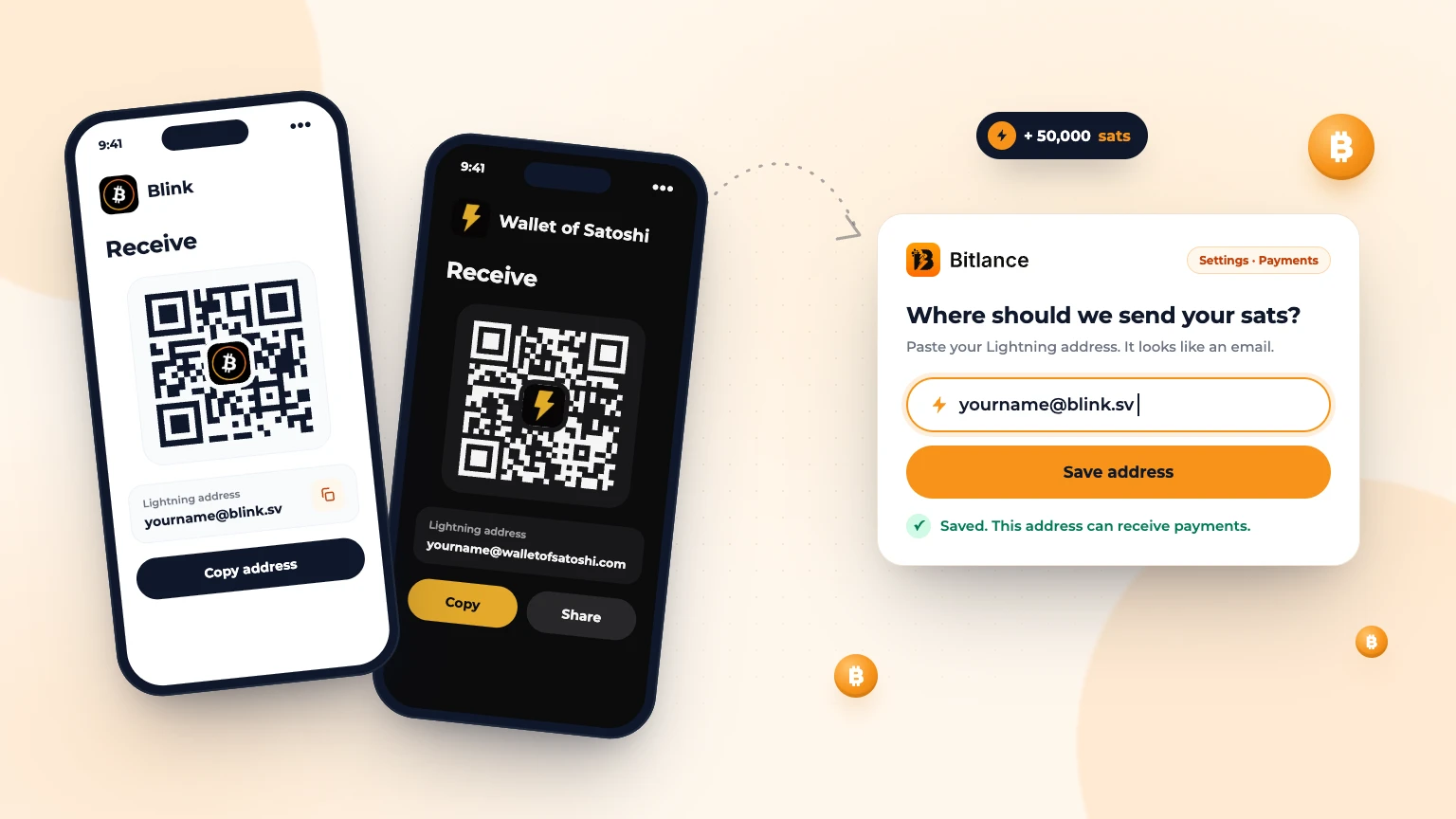
How to get a Lightning address and add it to Bitlance
Step by step with Blink and Wallet of Satoshi, for clients and freelancers: pick a wallet, get your address and add it to Bitlance....
Nov 139 min read
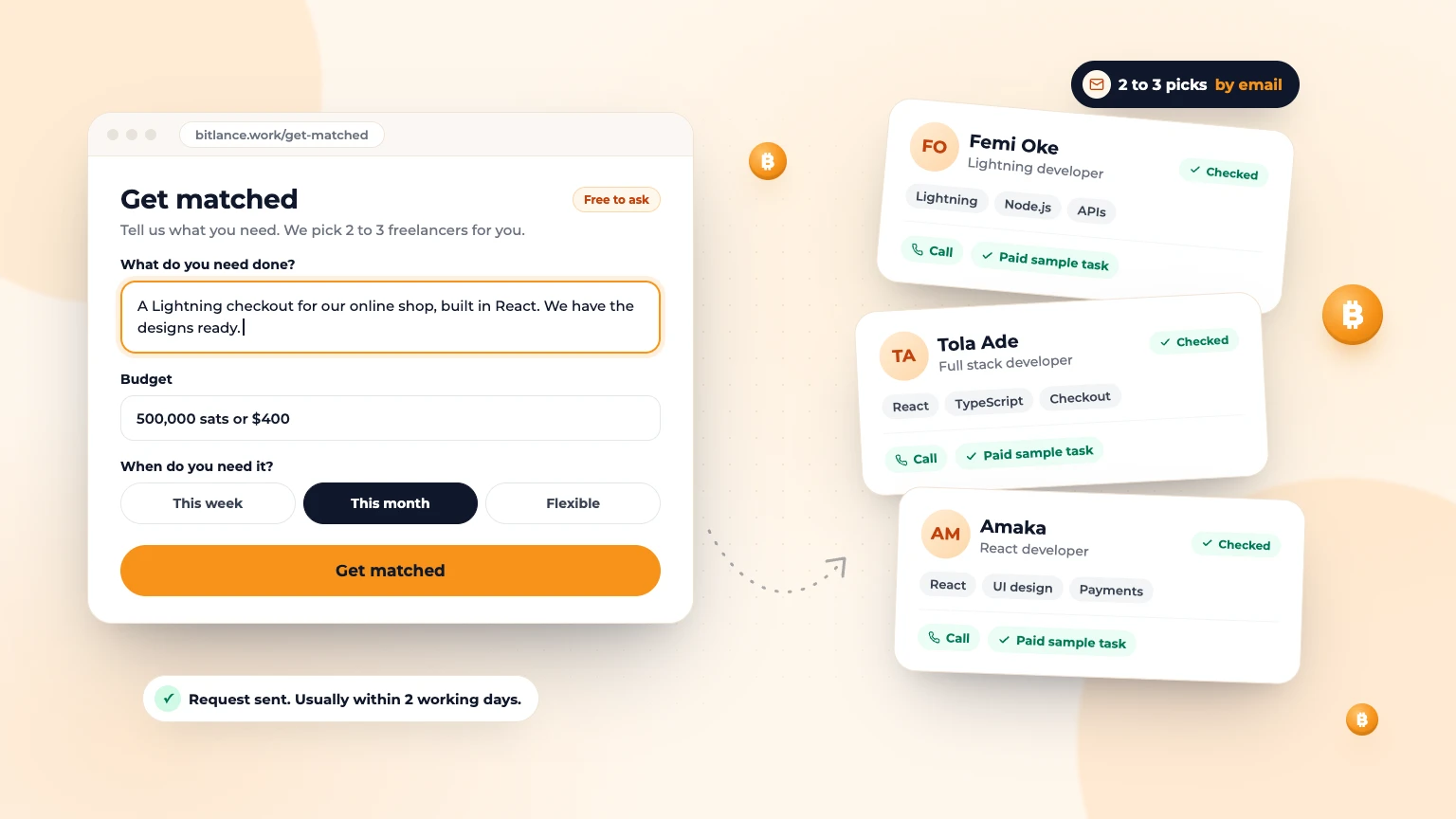
Get Matched: Let Bitlance Pick Checked Freelancers for You
Short on time? Tell us what you need and we'll email you 2 to 3 checked freelancers, usually within 2 working days. It's free to ask....
Nov 83 min read