
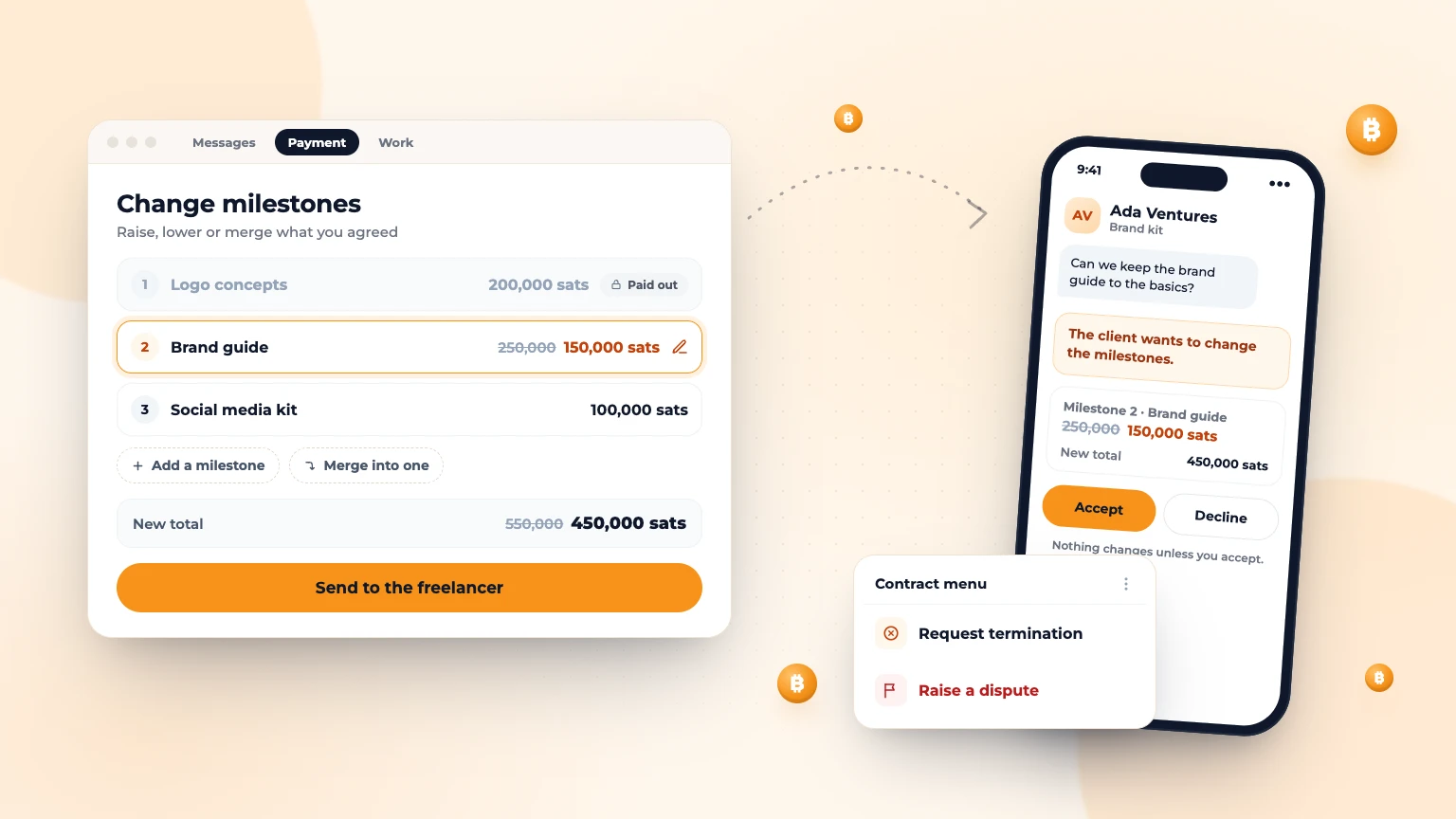
Most contracts go to plan. When they don't, Bitlance gives you three tools: change the milestones, ask to end the contract, or raise a dispute. Try them in that order. Talking it through in Messages first solves most problems.
Part 1: Changing milestones
Maybe the job grew, shrank, or you agreed to merge two steps into one. The client can change the milestones once at least one milestone has been paid in. Before that, the client simply sets the milestones when creating the invoice.
How the client changes milestones
- In the conversation, tap Payment at the top of the chat.
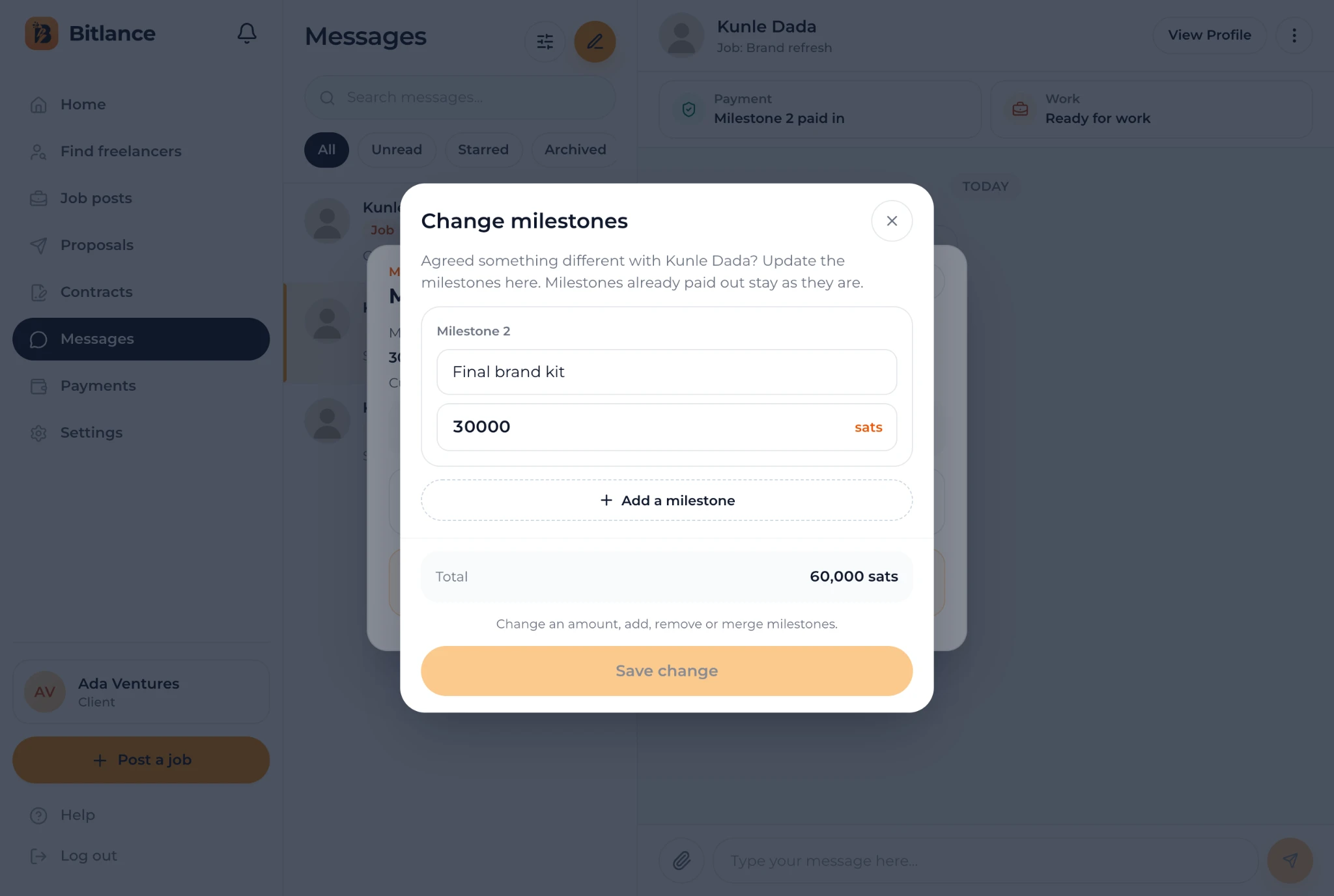
- Tap Change milestones ("Raise, lower or merge what you agreed").
- Edit the title or amount of any milestone that isn't paid out yet. You can also Add a milestone, remove one, or tap Merge into one. A contract can have up to 3 milestones.
- Check the summary: the new total, what you pay now and what comes back to you.
- Tap the button at the bottom. It says what happens next: Save change, Continue to payment or Send to the freelancer.
Milestones already paid out never change.
What happens to the money
- Raising a milestone that's already paid in: the client pays a small Lightning invoice for the difference plus the 5% fee. The change takes effect as soon as it's paid. What's already paid in stays where it is.
- Raising or adding milestones that aren't paid in yet: takes effect straight away. The client pays when funding that milestone.
- Lowering or removing a milestone: the freelancer must accept first. Once they do, the extra sats go back automatically to the Lightning address in the client's Settings, so add one before making the change.
What the freelancer sees
The freelancer gets a message in the chat and a banner: the client wants to change the milestones. Tap Review to see the before and after totals for each milestone, then tap Accept or Decline. Nothing changes unless the freelancer accepts. If they decline, the milestones stay as they were.
While a change is waiting, no milestone can be paid out and no new invoice can be made. The client can tap Cancel this change at any time.
Part 2: Ending a contract early
If the work can't continue, the client can ask Bitlance to end the contract.
- Go to Contracts, open the menu (⋮) on the contract card and tap Request termination.
- You'll see the contract details, including how many sats are still held.
- Write the reason for termination. This is required. Be specific and stick to facts.
- Tap Submit Request. The card shows Termination pending, and the freelancer is notified.
The Bitlance team reviews the request and may contact both of you. The contract stays active until the team decides. If the request is approved, any sats still held for the contract are sent back to the client's Lightning address, and both sides see the contract as Ended. Milestones already paid out to the freelancer stay paid. If the request is declined, the contract carries on as before.
Freelancers who need to stop a contract should talk to the client first, or contact Bitlance through Help in the dashboard.
Part 3: Raising a dispute
If you can't agree, for example about whether work was delivered as promised, either side can raise a dispute.
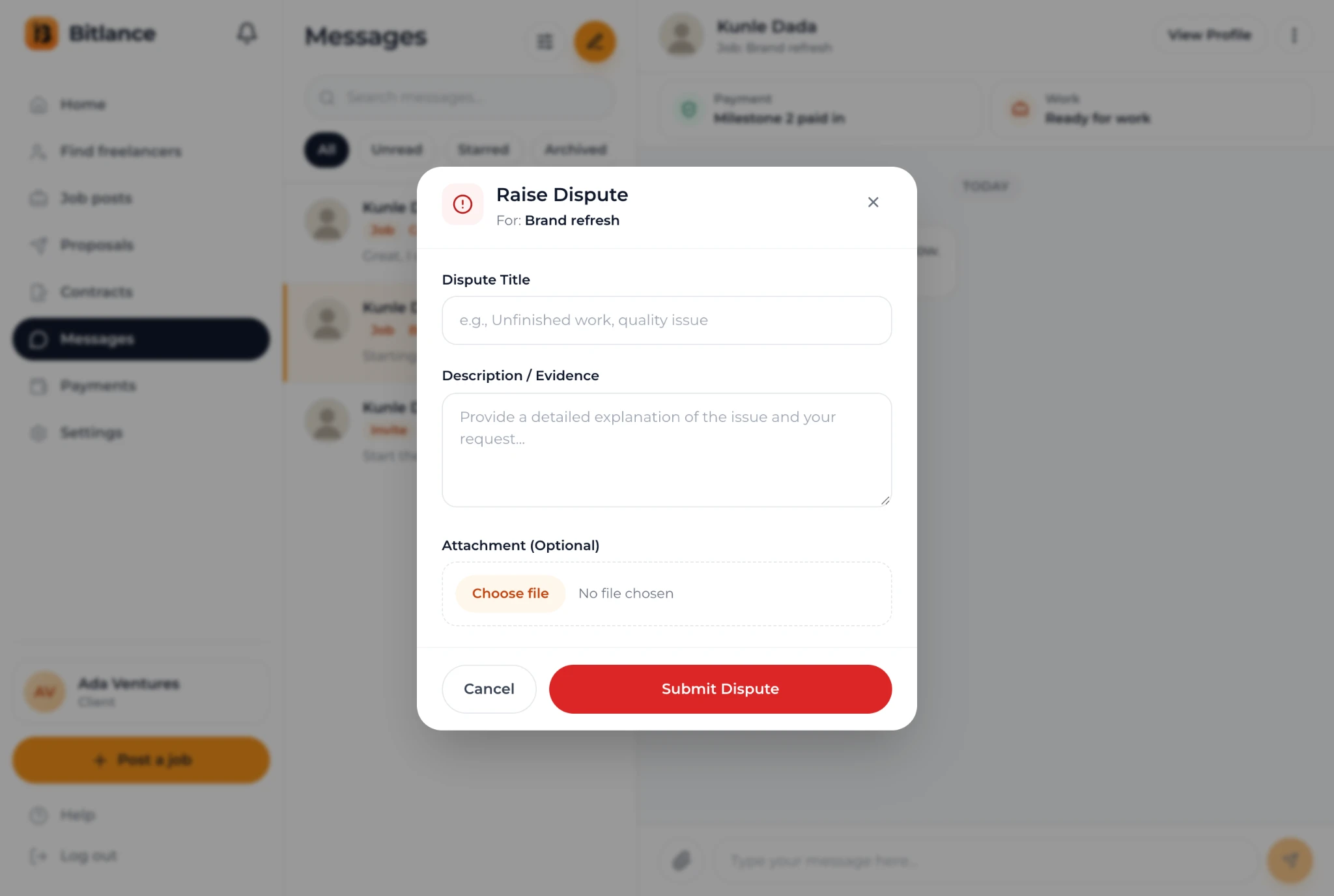
- Open the conversation, tap the menu (⋮) at the top and choose Raise Dispute. You can also find Raise a dispute in the contract's menu on the Contracts page.
- Give it a short Dispute Title, like "Unfinished work" or "Quality issue".
- Under Description / Evidence, explain what was agreed, what happened and what you're asking for.
- Add an attachment if it helps, such as a screenshot or PDF (up to 10MB).
- Tap Submit Dispute.
The Bitlance team reviews the contract, the payment records, the submitted work and your messages, then contacts both sides through the Admin Inbox in your dashboard. If you disagree with the decision, email admin@bitlance.work within 14 days.
Tips that make problems easier to solve
- Keep all communication in Bitlance Messages. It's the record the team reads.
- Agree what each milestone delivers before it's funded.
- Keep milestones small, so less is at stake at any time.
- Freelancers: submit work through Submit work, so there's a clear record of what you delivered and when.
Read more: how milestone payments work and how to avoid freelance scams.
Frequently asked questions
Can a freelancer change the milestones?
No. Only the client can propose a change. If the change lowers or removes a milestone, the freelancer must accept it before anything changes.
What happens to held sats if a contract ends early?
If the Bitlance team approves the client's request to end the contract, any sats still held for it are sent back to the client's Lightning address. Milestones already paid out to the freelancer stay paid.
Who decides a dispute on Bitlance?
The Bitlance team reviews the contract, payments, submitted work and messages, and contacts both sides. If you disagree with the decision, you can email admin@bitlance.work within 14 days.

Written by
Bitlance team
Research and insights on Lightning Network payments, remote Bitcoin work, and freelancing.
Related articles
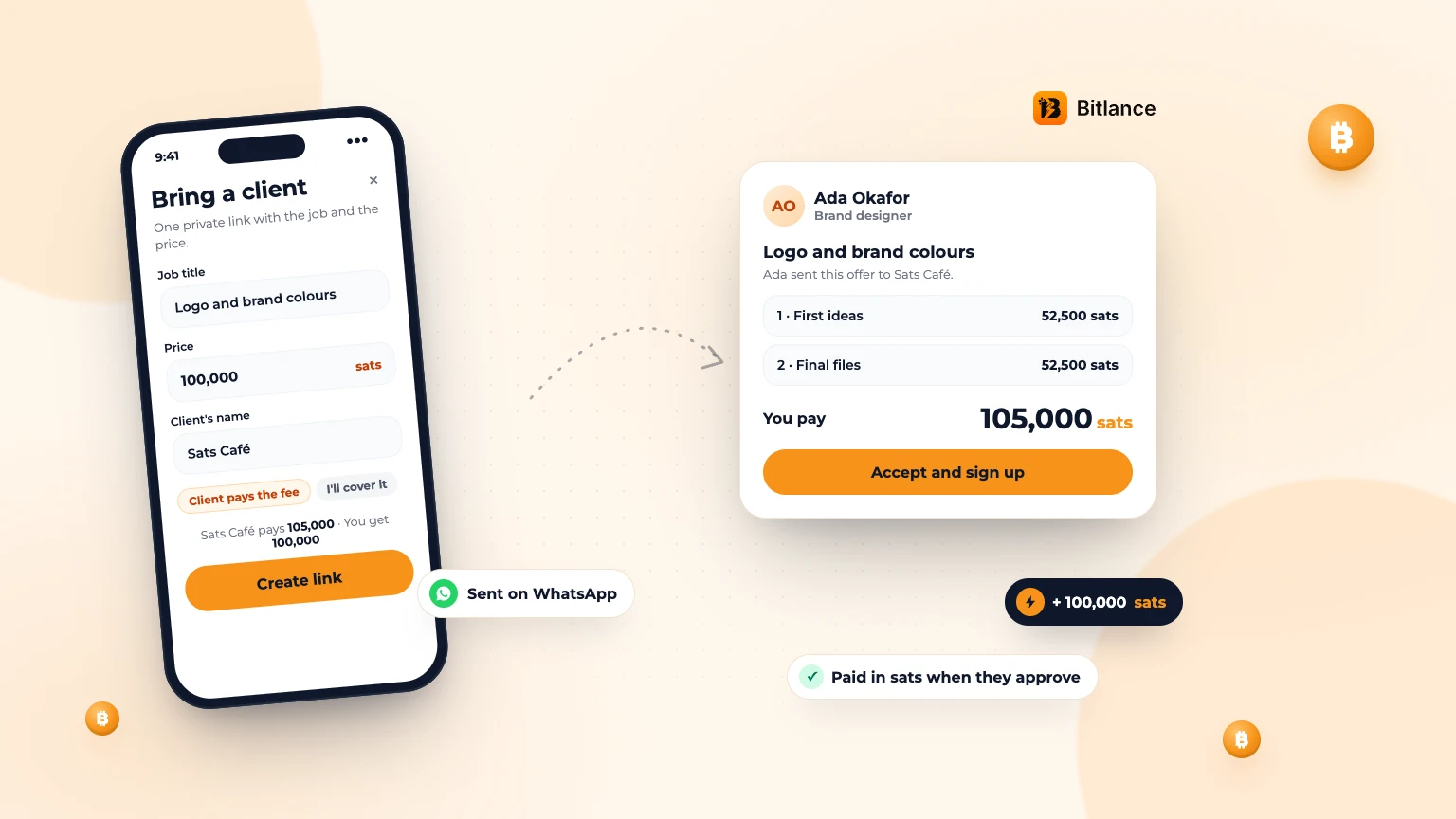
How to bring your own client to Bitlance and get paid in sats
One private link with the job and your price. Your client pays in first, and you're paid in sats when they approve....
Nov 133 min read
How to get a Lightning address and add it to Bitlance
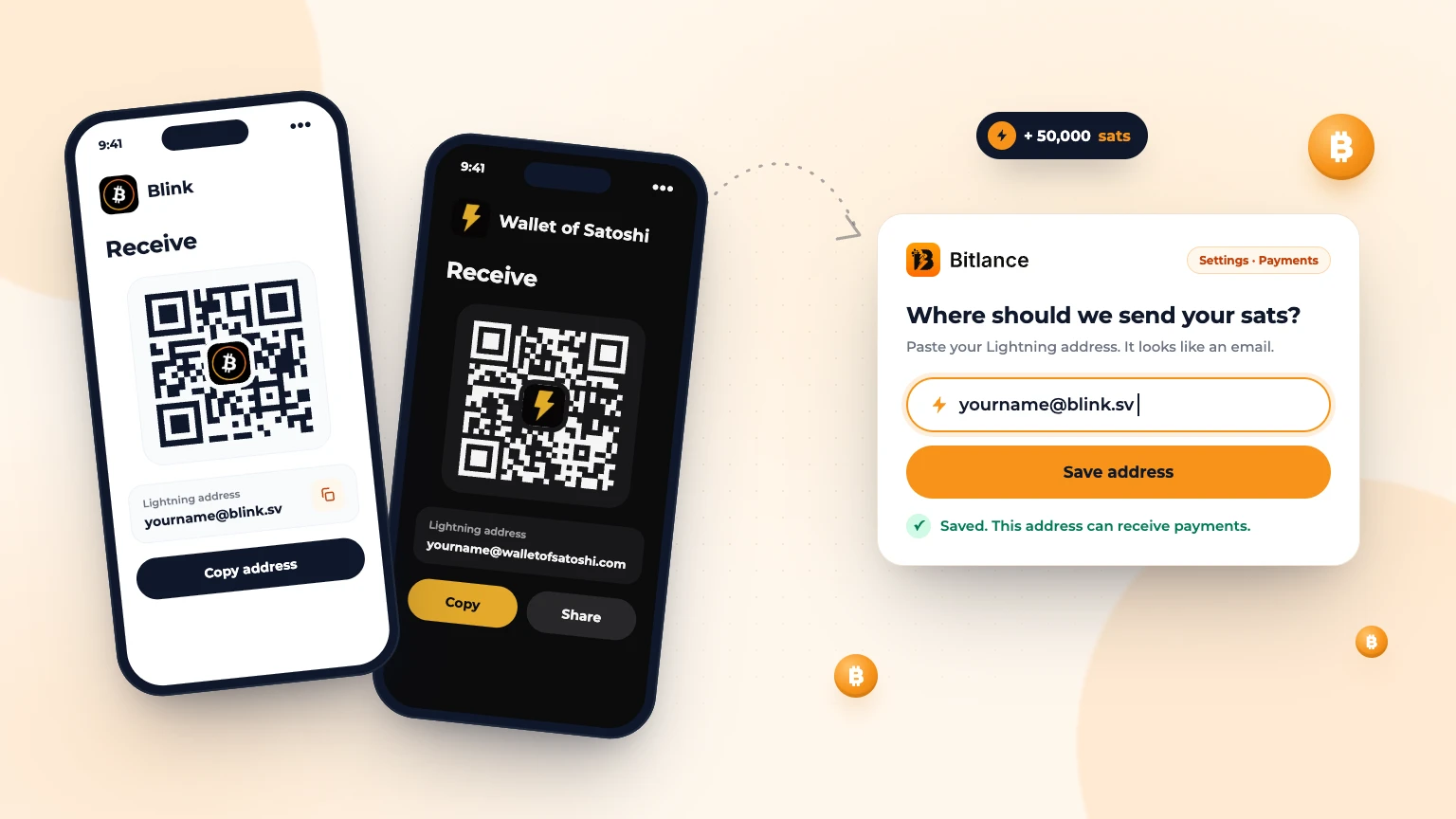
Step by step with Blink and Wallet of Satoshi, for clients and freelancers: pick a wallet, get your address and add it to Bitlance....
Nov 139 min read
Get Matched: Let Bitlance Pick Checked Freelancers for You
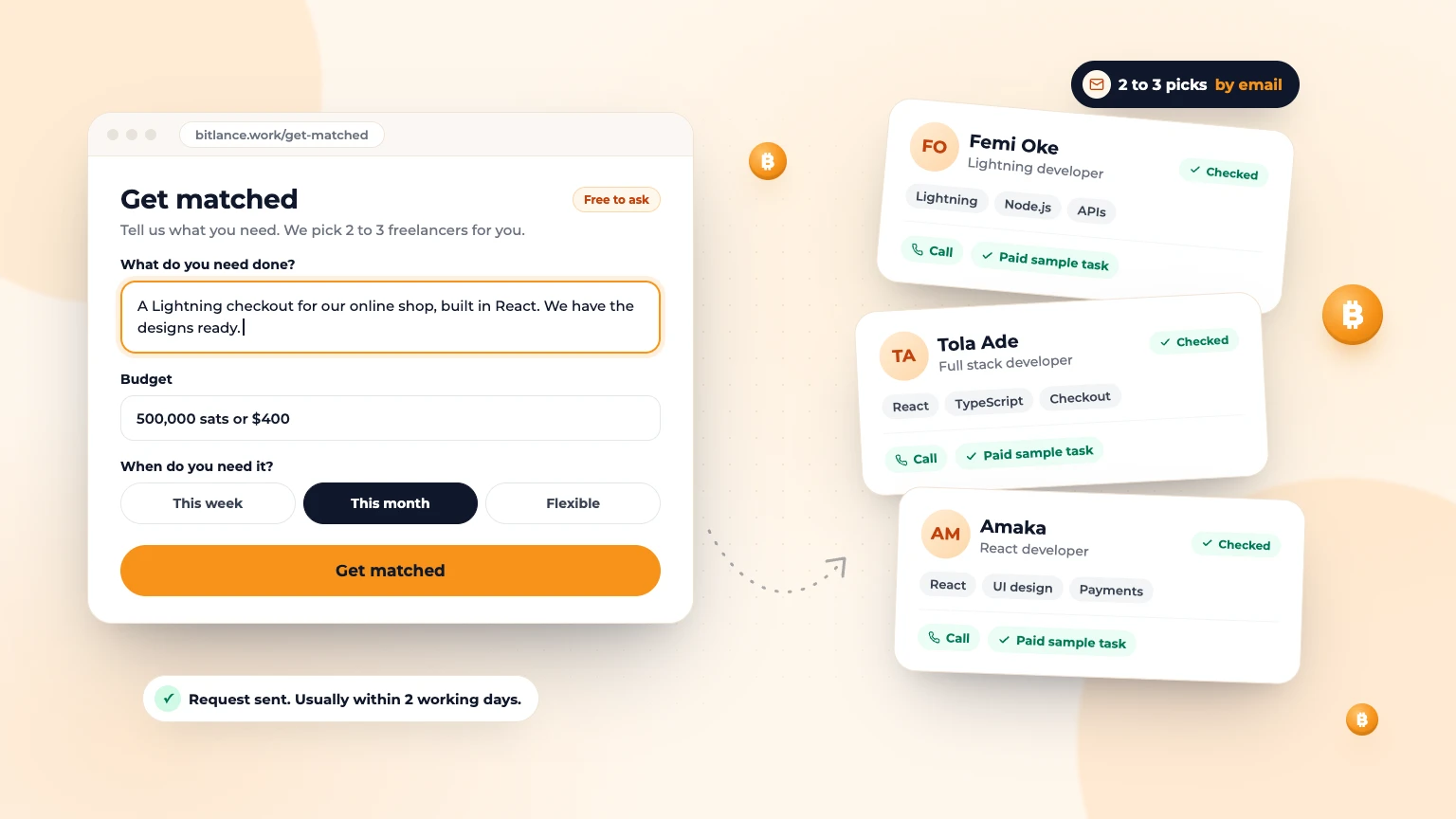
Short on time? Tell us what you need and we'll email you 2 to 3 checked freelancers, usually within 2 working days. It's free to ask....
Nov 83 min read